Waiter Guide
As a waiter, your job is to record customers' orders at their tables and make sure those orders reach the kitchen and are completed properly.
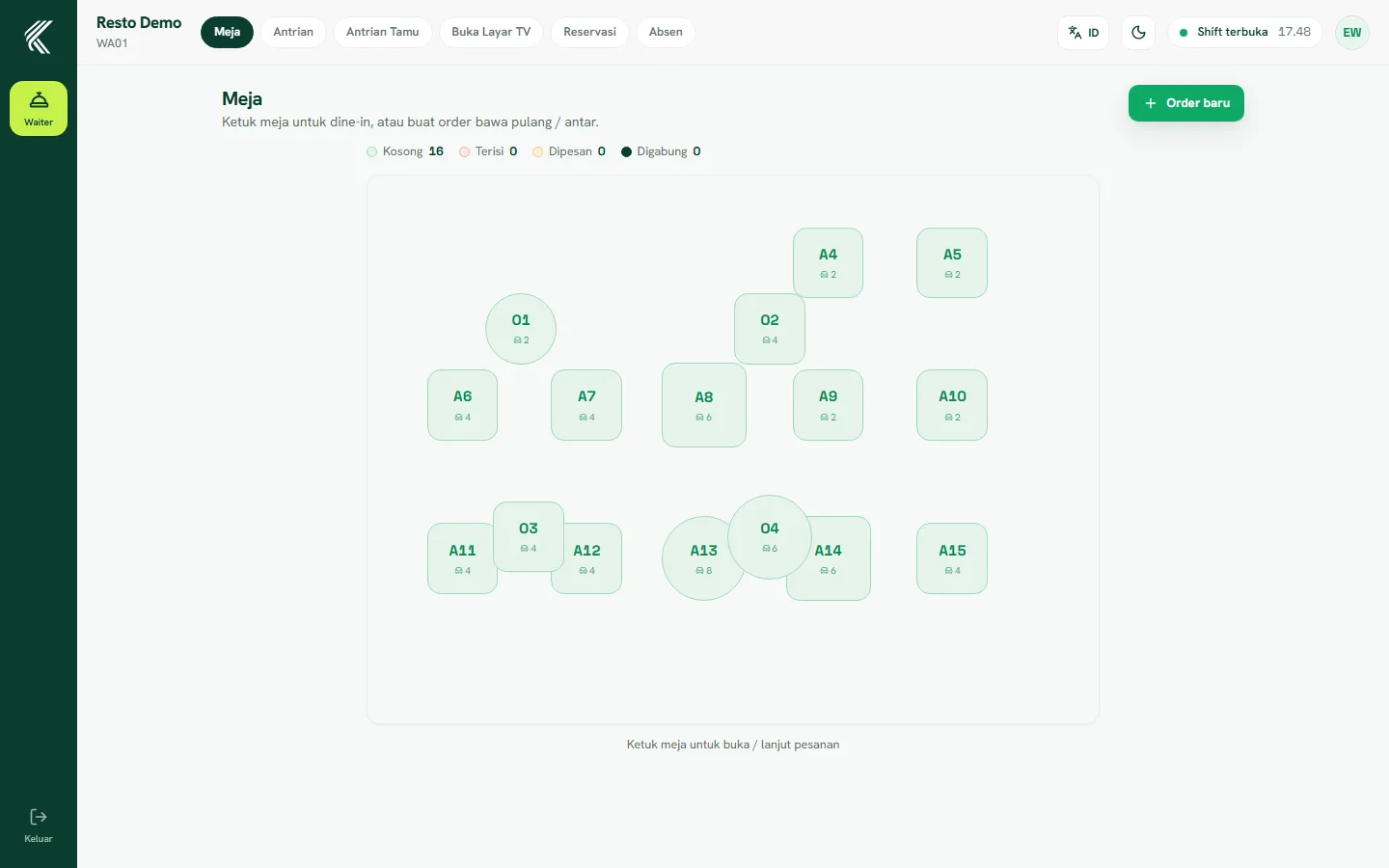
Choosing a table
Open the table layout to see the status of each table — empty, occupied, or being served. Tap an empty table to open a new order, or tap an occupied table to add to the order already in progress.
Recording and sending orders
Add order items as the customer requests, including special notes (for example "not spicy" or "no ice"). Once complete, send the order to the kitchen — sent items appear on the kitchen display (KDS) and the table status changes to occupied/being served.
Tracking order status
Track the status of each order item: new, sent to kitchen, or ready/served. You'll get a notification when the kitchen marks an item as ready, so you can deliver it to the table right away.
Move, merge, and split tables
If customers change seats or groups merge, use the move/merge table feature from the layout. For orders that need to be paid separately, use the split feature before handing off to the cashier for payment.