Adding your first product
Adding a category
Before adding products, first create a category from the Categories page (/owner/kategori) — for example "Drinks", "Snacks", or "Groceries". Categories make products easier to find while selling and keep the cashier screen tidy.
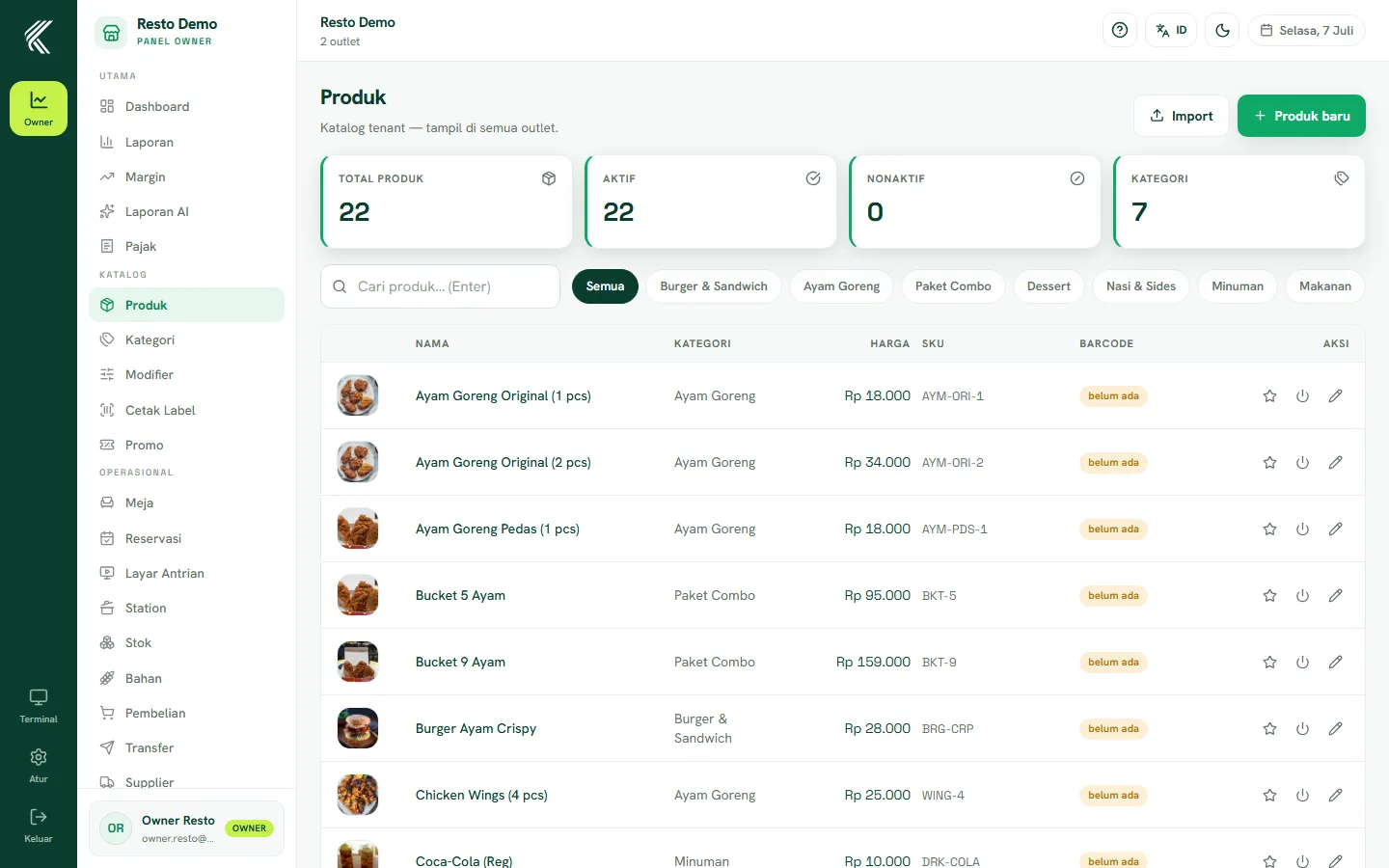
Adding a product
Open the Products page (/owner/produk), then add a new product by filling in:
- Product name.
- Selling price and cost price (the cost price is used to calculate profit in reports).
- SKU and/or barcode — type them manually or scan directly from the camera/scanner.
- The category you created earlier.
Units & weighed goods
Every product has a unit (pcs, pack, kg, and so on). For goods sold by weight (such as meat or vegetables), enable weighing mode — these products can then be scanned with an EAN-13 weighing barcode at the cashier and the weight is read automatically.
Product photo
Add a product photo so items are easier to recognize on the cashier screen, especially if you have a long product list. Photos are optional but greatly speed up the cashier.